Clean in quick sessions
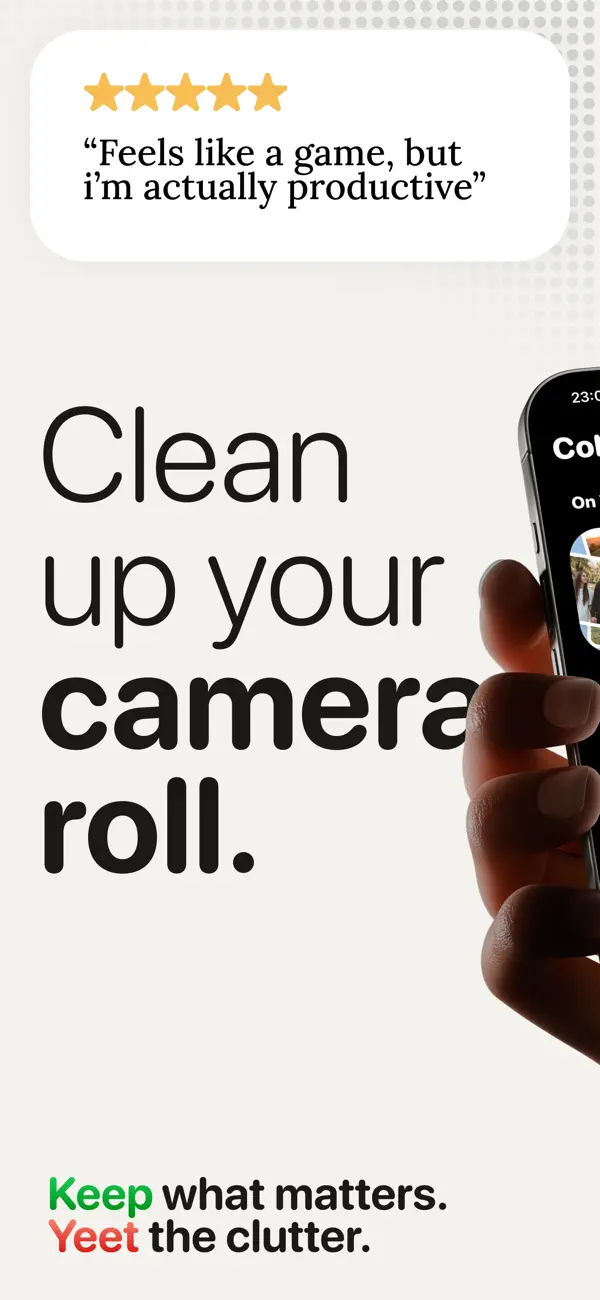
Make a little progress whenever you have a few spare minutes, without tackling your whole library at once.
The swipe photo cleaner
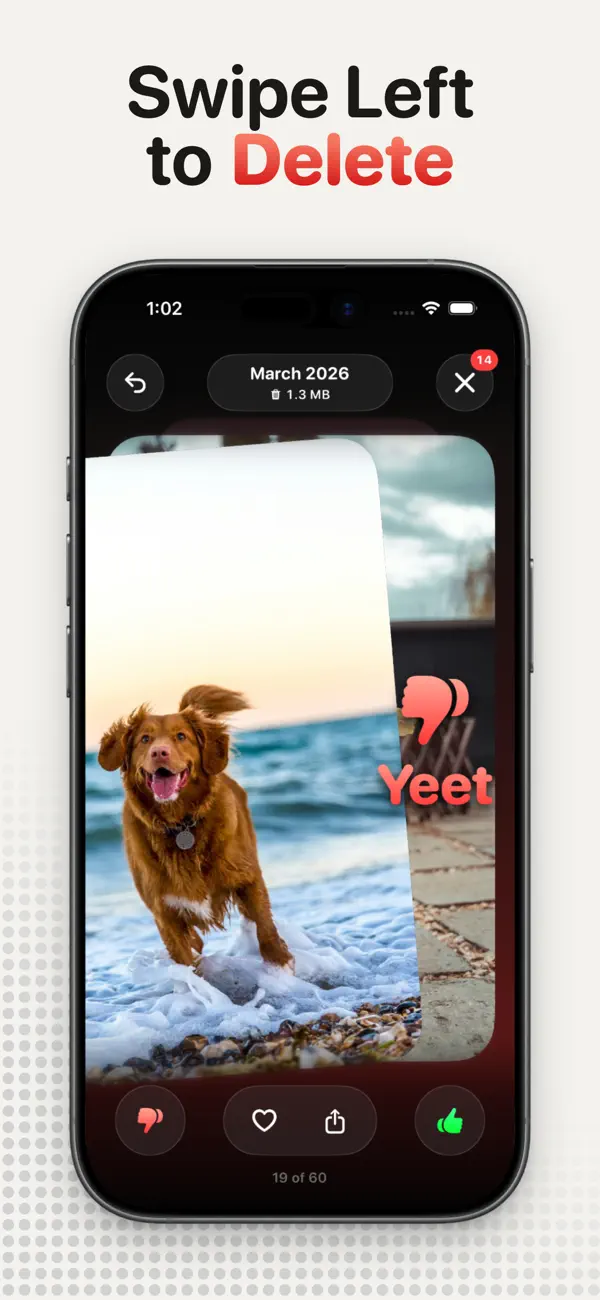
KeepYeet turns photo and video clutter into a quick, satisfying habit. Swipe right to keep. Swipe left to delete. Review your choices, free up phone storage, and get back to the memories that matter.
Why KeepYeet
A camera roll cleaner should make decisions easier without taking them away from you. KeepYeet keeps the flow focused and the final say yours.
Make a little progress whenever you have a few spare minutes, without tackling your whole library at once.
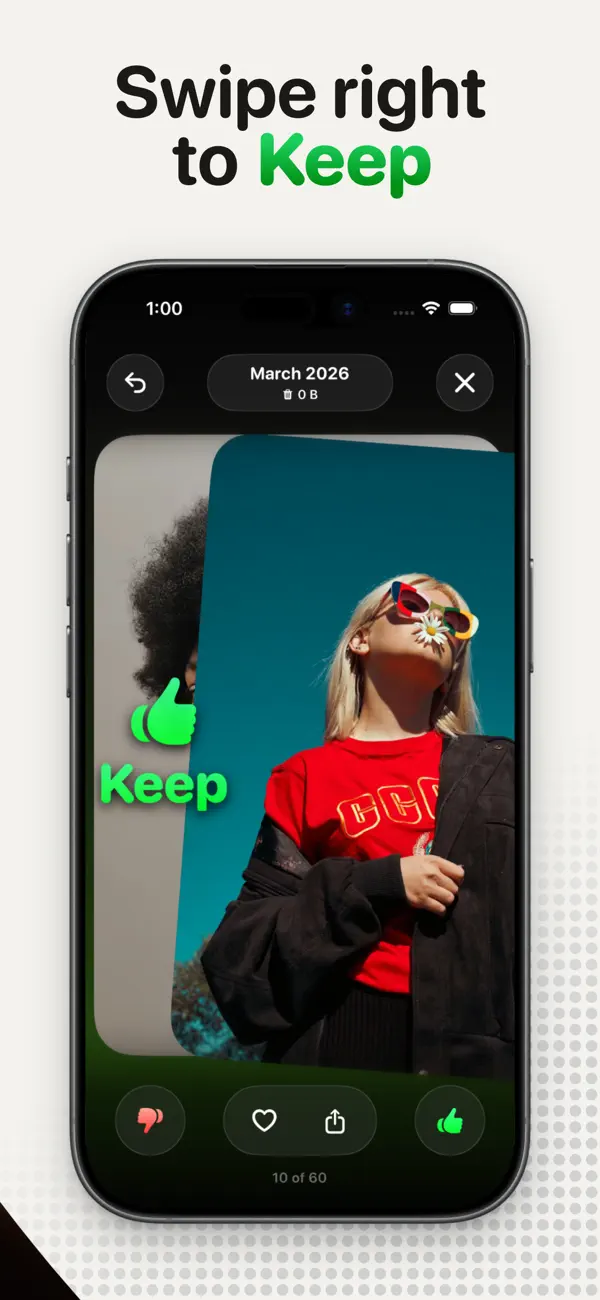
Swipe right to keep and left to yeet, turning a huge library into a quick decision loop.
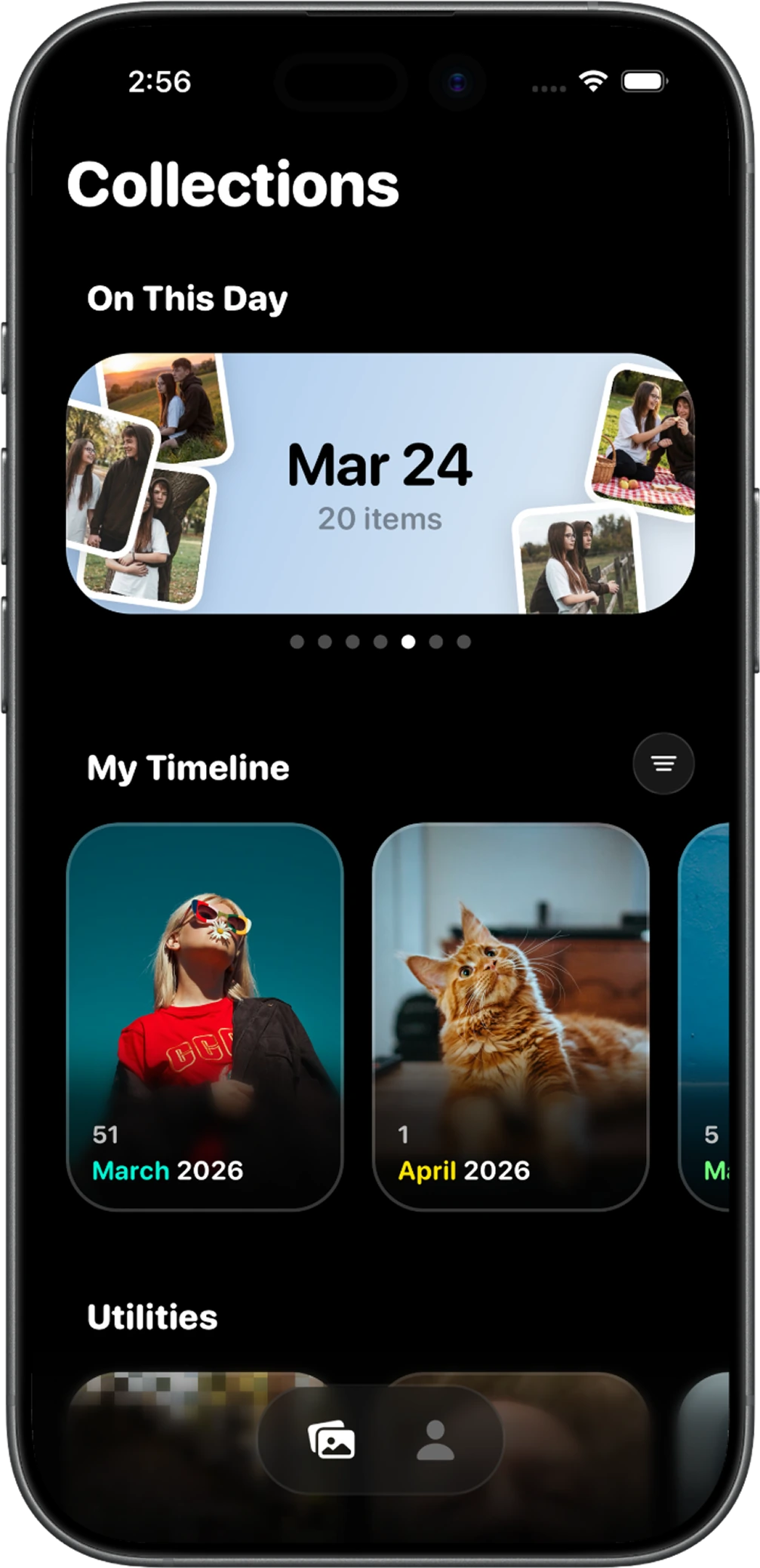
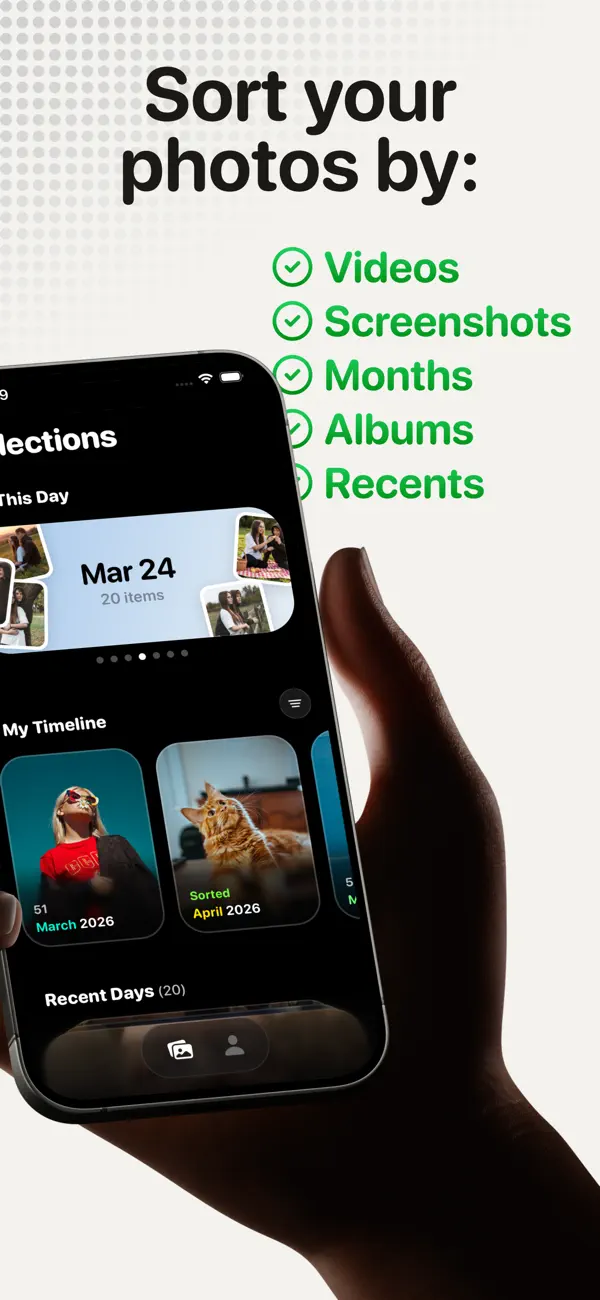
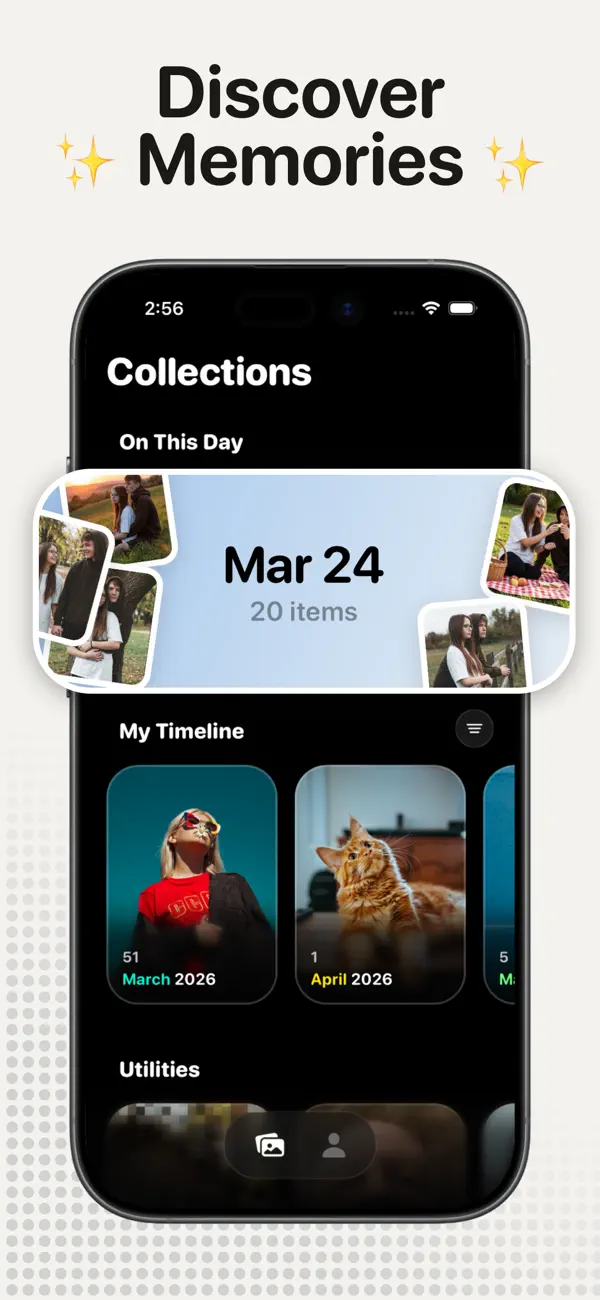
Open videos, screenshots, months, albums, or Recents instead of scrolling forever.
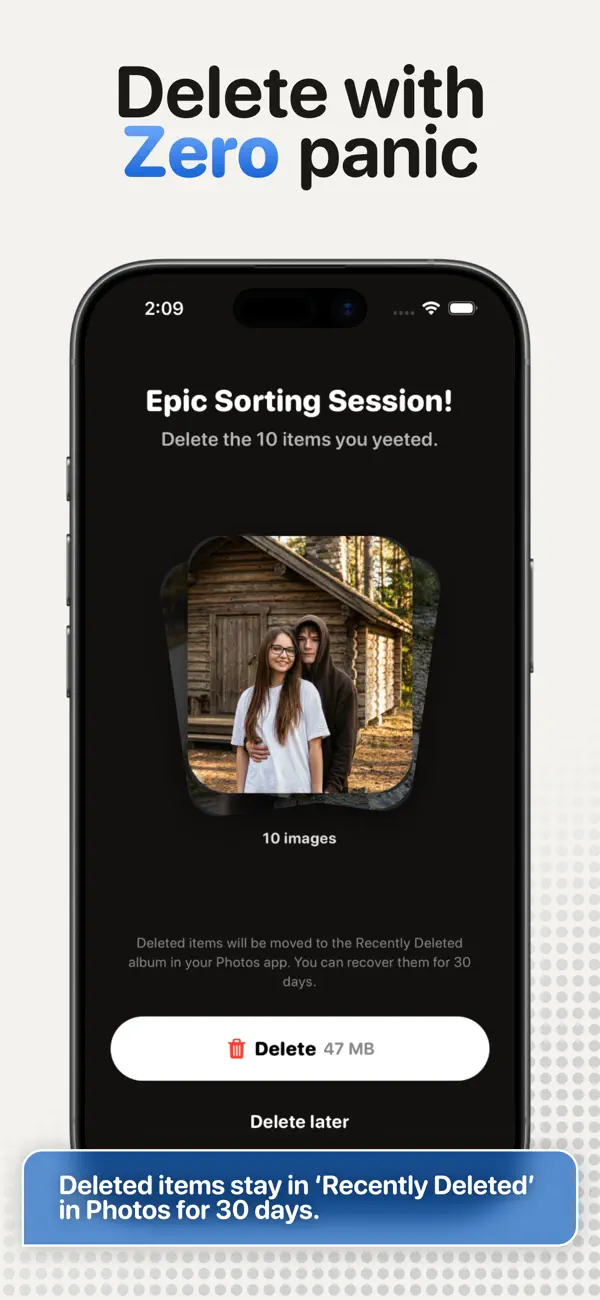
See everything marked for deletion and fix a doubtful swipe before you confirm the cleanup.
Follow cleanup progress and storage reclaimed so every session has a visible payoff.
Photo-library sorting and deletion happen on your device, and there is no account to create.
Inside the app
See the real KeepYeet experience: find clutter, swipe through photos, review your choices, and clear it with confidence.
How it works
No complicated menus. No automatic deletion. Just clear choices with a review before you confirm.
Start with screenshots, videos, Recents, an album, or one month that needs attention.
Swipe right to keep what matters. Swipe left to yeet what no longer earns its space.
Check every item marked for deletion and change your mind before anything is confirmed.
Complete the cleanup, see your progress, and come back for another small session whenever you like.
Practical cleanup guides
Clear answers for high-intent cleanup questions, followed by the exact KeepYeet workflow that gets the job done.
Learn how to swipe delete photos in focused sessions, review every choice, and keep final deletion under your control.
Read the guide Camera roll cleanupClean up camera roll clutter with focused filters, short sessions, and a final review before anything is removed.
Read the guide Choosing a cleanup workflowUse a camera roll cleaner to sort manageable batches, review deletions, and measure cleanup progress.
Read the guide Photo cleaner app guideFind a photo cleaner app with focused filters, a review checkpoint, and progress you can see after each session.
Read the guide Storage cleanup guideFree up phone storage by reviewing large videos, old screenshots, and unwanted photos, then track the space reclaimed after a careful cleanup.
Read the guide Intentional deletion guideDelete unwanted photos with a manual, review-first process for accidental shots, expired references, weak takes, and images you no longer need.
Read the guide Photo library resetDeclutter photo library overload with a category-first routine, month-by-month review, manual decisions, and small sessions you can repeat.
Read the guide Month-by-month cleanupOrganize photos by month with smaller review sessions that preserve context, reduce old clutter, and make long-term photo cleanup manageable.
Read the guide Screenshot cleanupDelete screenshots with a focused filter, separate useful records from expired references, and review the final choices before removal.
Read the guide Video storage cleanupDelete large videos to free space with a careful video-first review, manual keep-or-delete choices, and a final check before removal.
Read the guide On-device photo reviewChoose a private photo cleaner with on-device review, no required account, controlled deletion, and a clear checkpoint before removal.
Read the guide Review-first cleanupReview photos before deleting them with a two-stage workflow: make focused choices first, then inspect every marked item before final removal.
Read the guideFAQ
Open a question for the short answer, then follow its Learn More link for a full step-by-step guide.
Start with one focused group, such as screenshots, videos, Recents, or a single month. Then make one keep-or-delete decision at a time. Short sessions reduce decision fatigue and make a large library manageable.
Learn more about cleaning up your camera rollIn KeepYeet, swipe right to keep a photo or video and left to mark it for deletion. Marked items go to a review step, so a single swipe is not the final deletion.
Learn how to swipe delete photos safelyKeep the session small, make every decision manually, and inspect the complete deletion list before confirming. Recovery then depends on the platform and backup state: Apple Photos documents 30 days in Recently Deleted, while Google Photos documents 60 days for backed-up items and 30 days for unbacked items.
Learn how to review photos before deletingYes. Old screenshots can accumulate quietly. KeepYeet gives them a focused view so you can remove outdated tickets, receipts, confirmations, and temporary references without scrolling through everything else.
Learn how to delete screenshot clutterChoose one month, review it in context, keep the memories that matter, and remove the clutter. A month is a natural boundary that turns an overwhelming library into a finishable session.
Learn how to organize photos by monthYes. KeepYeet supports photos and videos, with dedicated views for videos, screenshots, months, albums, and Recents. Every final deletion stays under your control, and KeepYeet does not claim video compression.
Learn how to review large videos for more spaceNo. KeepYeet’s photo-library sorting and deletion workflow happens on-device, and no account is required. Analytics and advertising disclosures are separate, so review the current privacy policy and store privacy label for full details.
Learn about on-device photo cleanupYes. KeepYeet is available on Google Play for Android. Use the Google Play button to install it.
Download KeepYeet for Android
Download KeepYeet
Get KeepYeet on the App Store or Google Play, then turn photo and video clutter into a quick cleanup you can finish.